


Features
- Install MCP servers from Settings > Integrations
- Add your own MCP servers with
stdio,http, orssetransport - Connect OAuth-based remote MCP servers
- Enable MCP servers from existing integrations automatically (GitHub, Linear, Sentry, Postgres)
- Scope a custom MCP server to yourself or share it with your workspace
- Reach private MCP servers on your tailnet through the Tailscale integration
Installation
1
Open Integrations
Go to Settings > Integrations.
2
Use built-in MCP servers
Install any listed MCP integration (for example, Notion or Stripe). Once connected, the server is available in new sessions.
3
Add a custom server
Click Custom MCP, paste your JSON config, then save.
Built-in MCP integrations
Use these guides to connect the remote MCP services available in Tembo’s catalog. These connections provide tools during sessions; they do not by themselves configure event-triggered agents.
Review the selected provider account and requested permissions before connecting. Remote MCP tools send requests to the provider’s service, even when Tembo is self-hosted. Your installed release and organization settings can affect catalog availability.
Usage
Prerequisites
- You have access to your organization in Tembo
- You have the server URL or command needed to start your MCP server
- You have any required credentials (API key, OAuth app, or environment variables)
Custom server transport types
HTTP
Use this for hosted MCP endpoints.SSE
Use this for hosted MCP servers that expose an SSE endpoint.Stdio
Use this when the MCP server runs as a local command.Personal and shared custom servers
When adding a custom server, workspace admins can check Personal MCP to make the server available only in sessions they create. Leave it unchecked to share the server with the rest of the workspace. Non-admins always create personal custom servers, and this cannot be changed after the server is created.Private servers on your tailnet
If anhttp or sse MCP server is only reachable on your Tailscale network, sessions can connect to it through the Tailscale integration. You don’t need to expose it to the public internet.
Before you start:
- Install and enable the Tailscale integration
- Allow your session tag to reach the server’s host and port in your tailnet policy. For example, with sessions tagged
tag:tembo-sessionand the server taggedtag:mcp:
1
Add a custom remote server
Go to Settings > Integrations, click Install on the Custom MCP card, and choose the Remote connection type.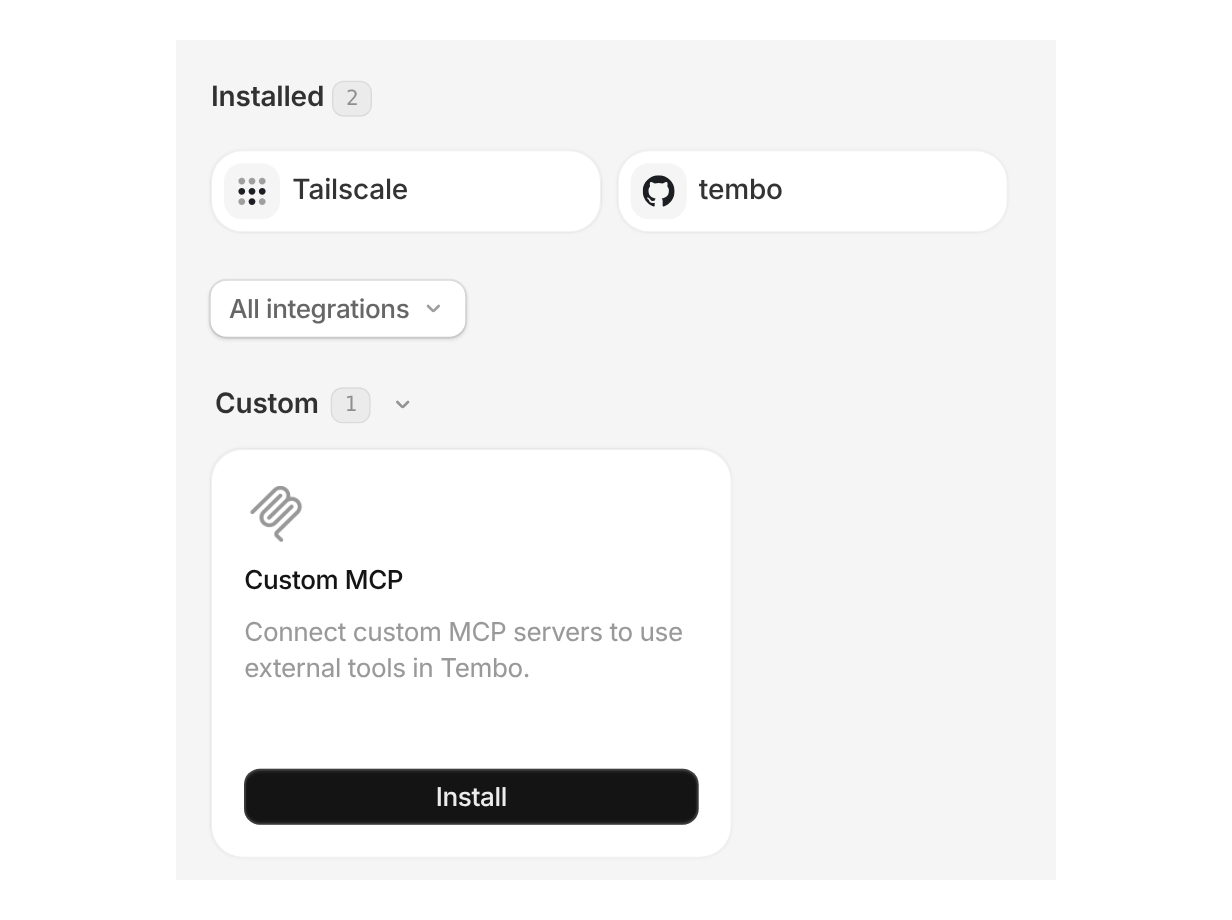
2
Enter the tailnet URL
Enter a name and the server’s URL on your tailnet. MagicDNS names work, for example
https://mcp.your-tailnet.ts.net/mcp.3
Turn on Reach via Tailscale
Turn on Reach via Tailscale. The toggle is disabled until the Tailscale integration is installed.
4
Add headers if needed
Your tailnet ACLs control which sessions can reach the server. If the server also expects a token, add it as a header (for example 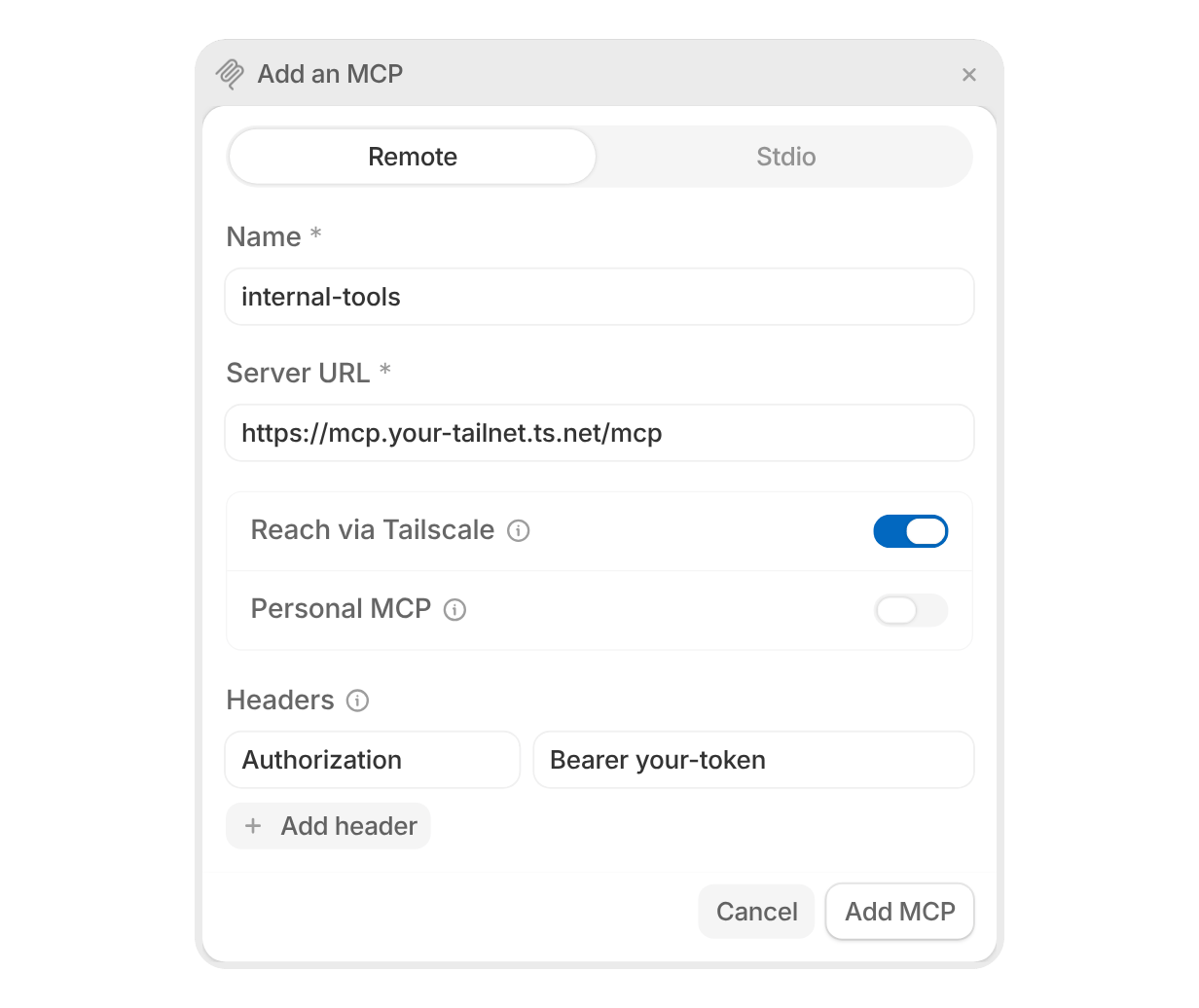
Authorization). OAuth and client credentials aren’t available for tailnet servers.- The server shows as connected as soon as you add it, without a connection check. Start a session to confirm Tembo can reach it.
- Connection testing isn’t available for tailnet servers.
- You can only turn on Reach via Tailscale when you add a server. To switch an existing server, remove it and add it again.
Configuration formats
Tembo accepts both of these formats:- Object format (recommended):
mcpServersis an object keyed by server name - Array format:
mcpServersis an array with explicitnamevalues
Advanced
OAuth-based servers
OAuth-based servers
If a remote server requires OAuth, choose how the OAuth client is registered when adding the custom server:
- Automatic: Tembo registers an OAuth client with servers that support dynamic client registration, then prompts you to authorize during setup and completes the connection after you approve access.
- Pre-registered: Use credentials from an OAuth client you already registered with the MCP provider. Register the callback URL shown in the dialog as the provider’s OAuth redirect URL, then enter the Client ID (required), Client Secret (optional for public clients, but required by some providers such as Slack), and an optional space-separated Scope.
Server not showing up in sessions
Server not showing up in sessions
Check that the JSON is valid, required fields are present, and the integration is saved successfully. Start a new session after saving to pick up updated MCP config.
Authentication or connection errors
Authentication or connection errors
Verify API keys, headers, or environment variables. For
http and sse servers, confirm the URL is reachable from your server environment.For tailnet servers, confirm the Tailscale integration is still enabled and that your ACLs allow your session tag to reach the server’s host and port. Connections that time out usually mean the ACL policy doesn’t allow the traffic.